N.I.N.A. Log (Sequence Diagnostics)
The N.I.N.A. Log viewer searches, filters, and analyzes log files and is optimised for the N.I.N.A. log, so this is obviously your most comfortable option to view the N.I.N.A. log.
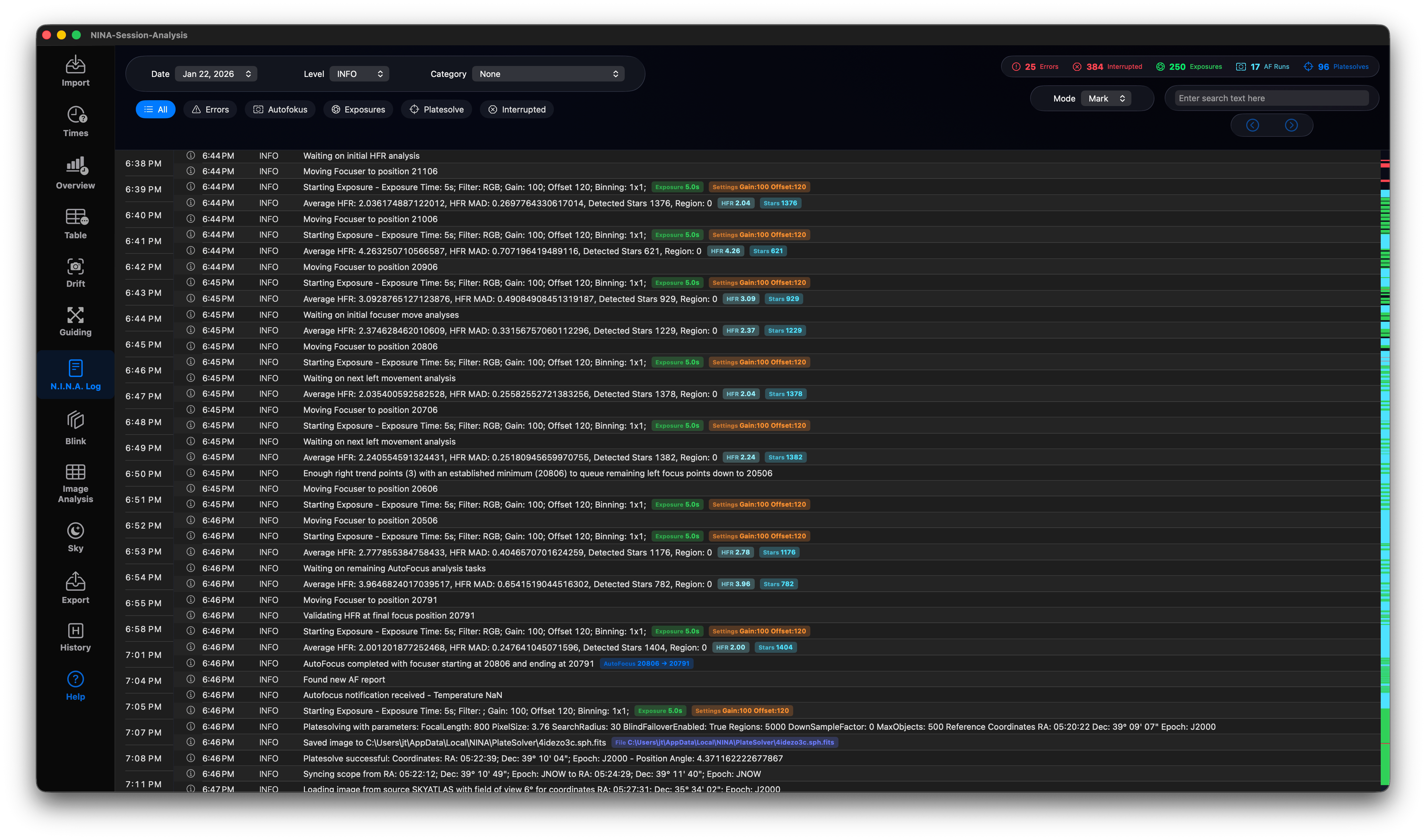
On top you can select different logs by date, the log level and several categories for special display purposes. On the top-right side you get a summary: the number of errors in the log, the number of interruptions while capturing an image due to high RMS values, the total number of started exposures, the number of Autofocus runs and the number of platesolvings done by N.I.N.A. Below you can search for any word in the log. There are two modes available:
- Mark: Marks the found terms in the log
- Filter: Filters the log to show only the lines containing the found terms
With the two arrow buttons you can jump from one occurrence to the next one or back. In the second row on the left side you can use quick filters:
- Errors: Filter for exceptions, warnings, or device failures.
- Autofokus: Filter for autofocus triggers, V-curves, and results.
- Exposures: Show exposure starts, completions, and download times.
- Platesolve: Show platesolving attempts, coordinate shifts, and failures.
- Interrupted: Show aborted sequences (e.g., due to guiding limits or weather alerts).
On the left you have a separate timeline (scrolling independently), which is helpful to select a special time in the log and jump to this time. The log lines have marks for errors, interruptions, exposures, AF runs and platesolving. Important information is highlighted in badges. On the right side there is a map of the entire log, which can be clicked to jump to a special event.
The log analyzer displays the following metrics:
* Average HFR: Parses focus metrics.
* Detected Stars: Tracks guide/imaging star counts.
* AutoFocus completed: Extracts focuser travel positions.
* Starting Exposure: Details exposure times, filters, gain, and offset.
* Saved image to: Extracts target filenames.
* Total RMS above threshold: Logs guiding errors that exceeded limits.\n
Right-click on a log line shows a context menu:
- Show current light: Shows the current light for this time in the image viewer.
- Show telescope: Shows the mount orientation in 3D.
- Hide this content: If there are a lot of distracting lines you can hide all occuramces of this content to make the log more readable.