Blink (Quality Comparator)
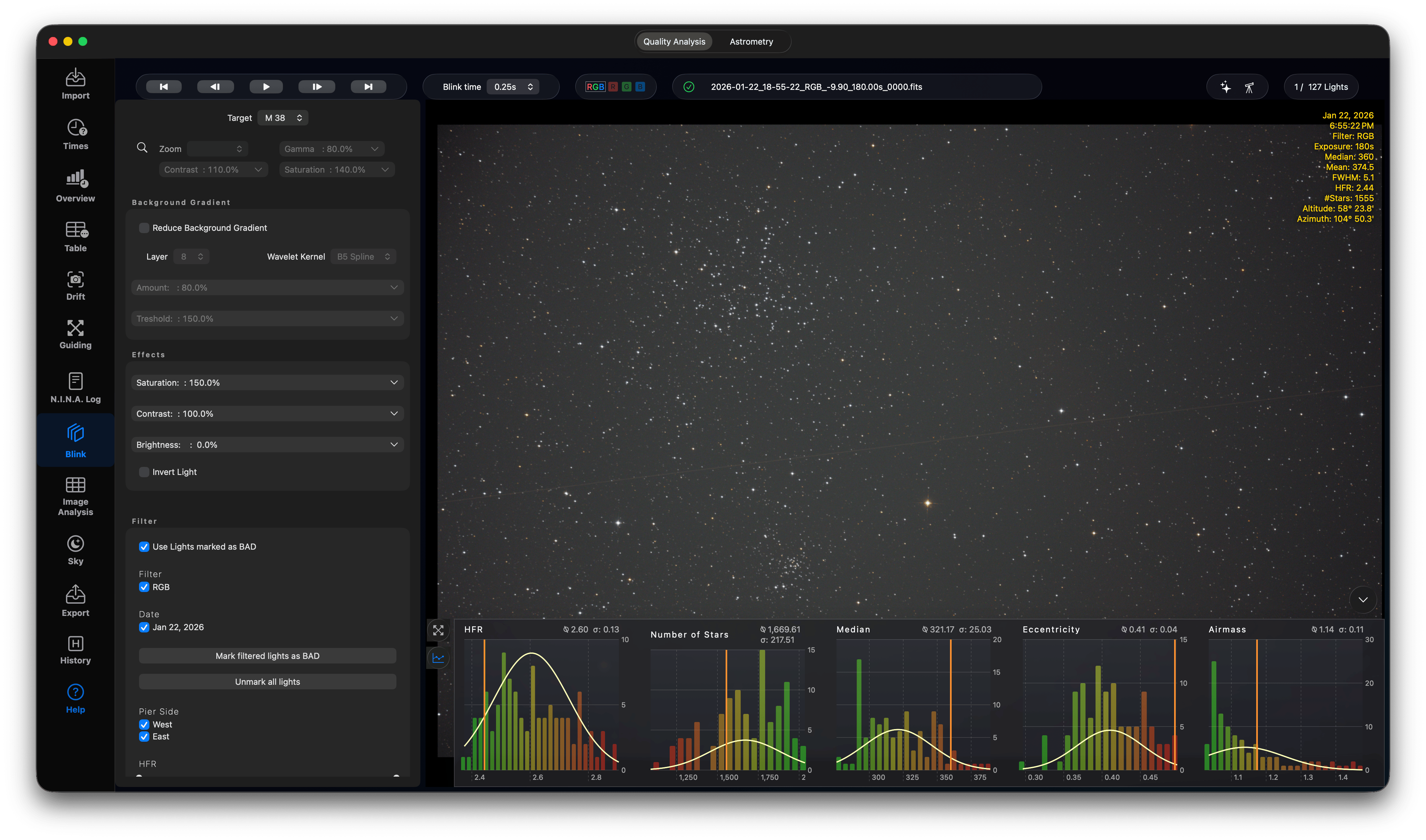
The Blink view allows you to step through exposures to inspect for defects like satellite trails, clouds, or optical problems.
Press Prepare Blinking, which caches and stretches FITS/XISF images. If you platesolved your lights, all lights will be aligned using the available WCS data, which dramatically improves the efficiency of this tool. Please wait until all lights are processed, this might take a minute or two depending on the number of lights and your SSD speed. Unless you have no internet connection, you should always check Query SIMBAD data, so you can also use the astrometry overlay.
Quality Analysis Mode
- Playback controls to cycle through images at adjustable speeds.
- Mark frames as "BAD" during playback.
- Zoom using magnifier lens or crop the image by drawing a rectangle on the image.
- Reduce the Background gradient using wavelets
- Use Effects to change saturation, contrast and brightness or invert the lights
- Filter lights by date, filter or a range of values such as HFR, star eccentricity, mean and more
This is a very effective tool to blink through all your lights and mark lights as BAD for later processing. You have all information available. In the collapsable bottom section you have charts for HFR, Number of Stars, Median, Eccentricity and Airmass and you can see at glance the quality of each light together with the stretched image. Or you can see the guiding chart for the light.
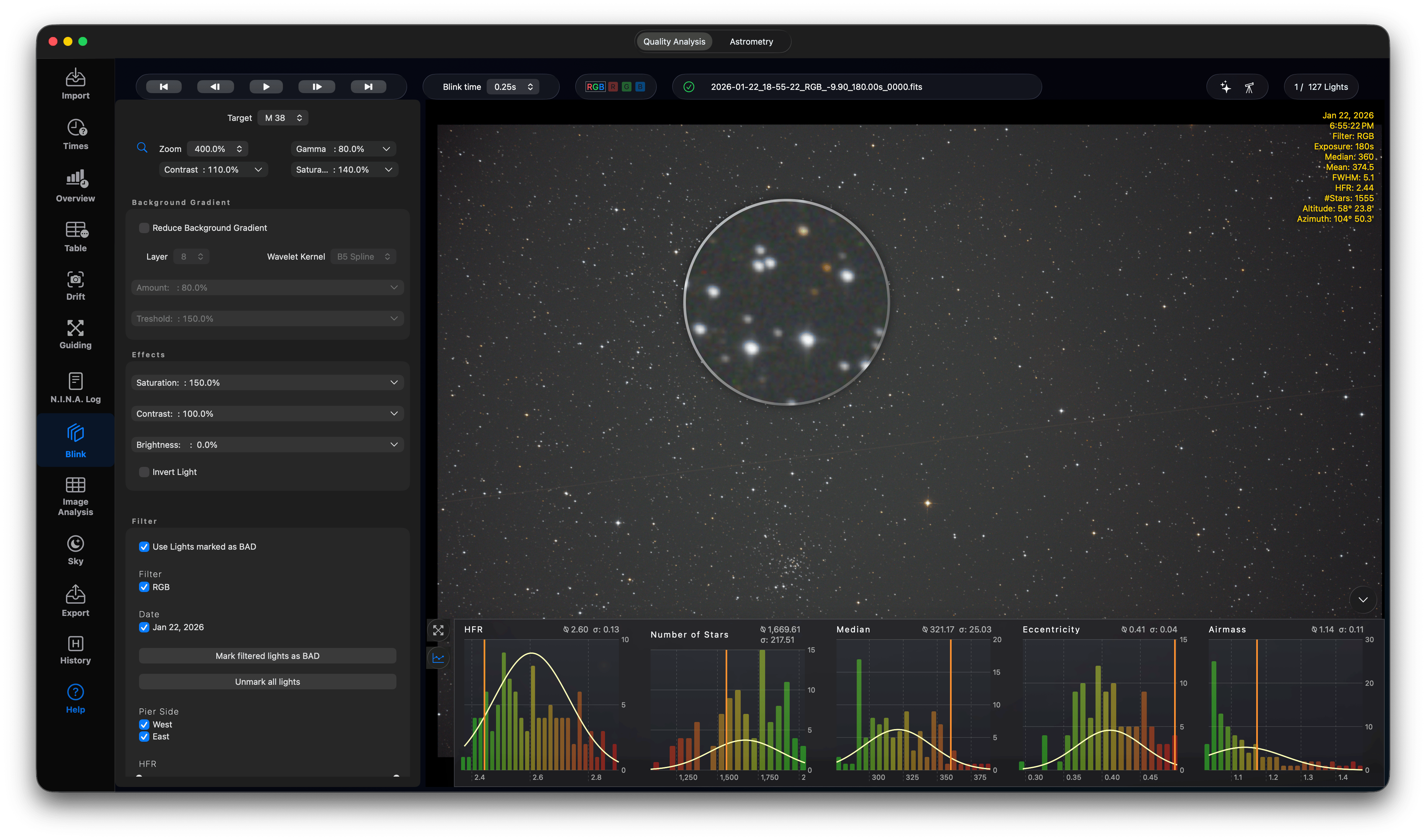
Use the Magnifier Glass button to zoom and scan an image. You have separate Gamma correction, Contrast and saturation settings for the lens. This is helpful to have a detailed look on the stars and other details.
If you prefer, you can crop the image by drawing a rectangle. Use Reset Crop to reset this crop mode.
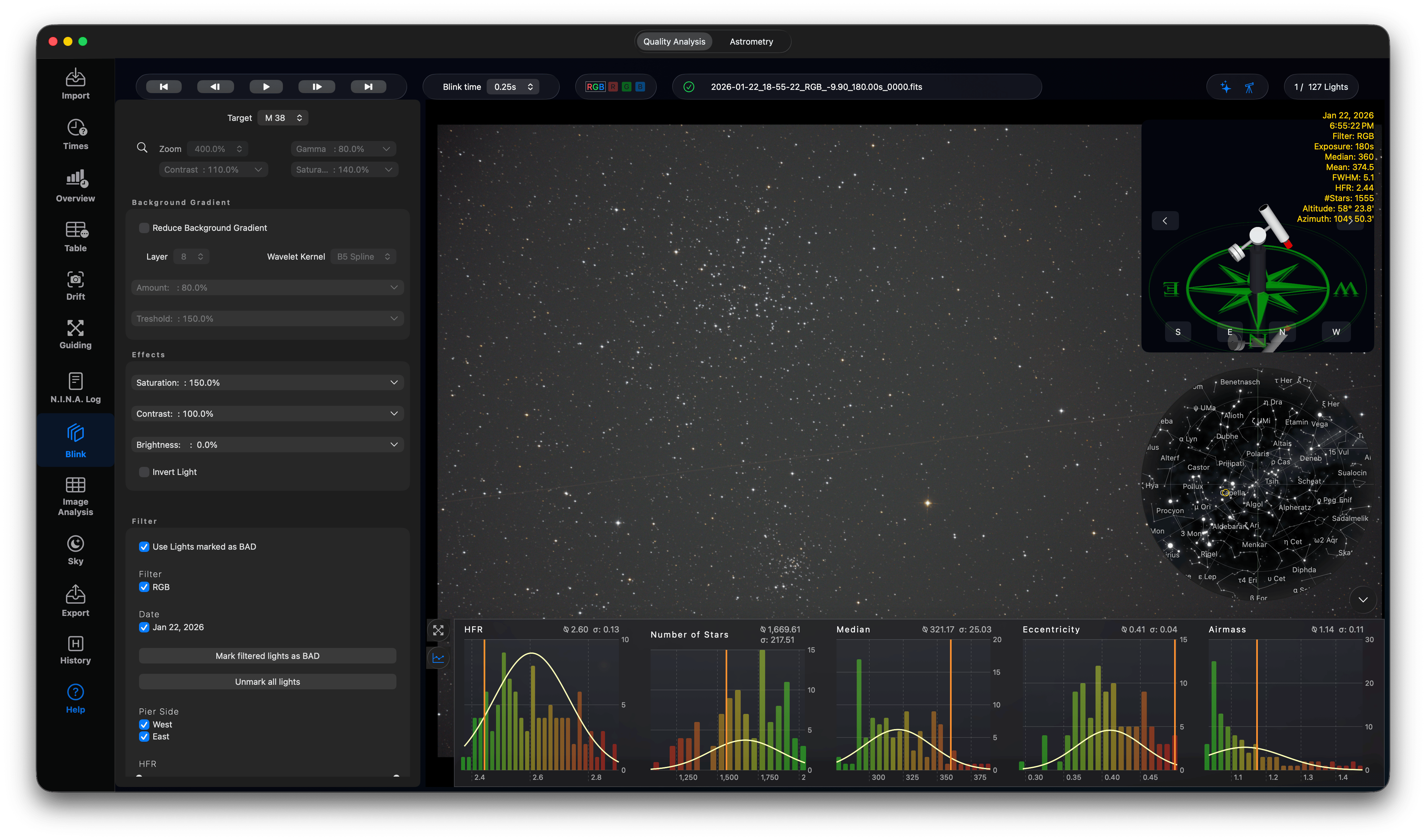
Use the overlays for sky and telescope to see where in the sky this light was captured (near zenith or near horizon) and how the mount was positioned. Maybe, you will have some reoccurring guiding issue at the same azimuth - this could be some cable snag.
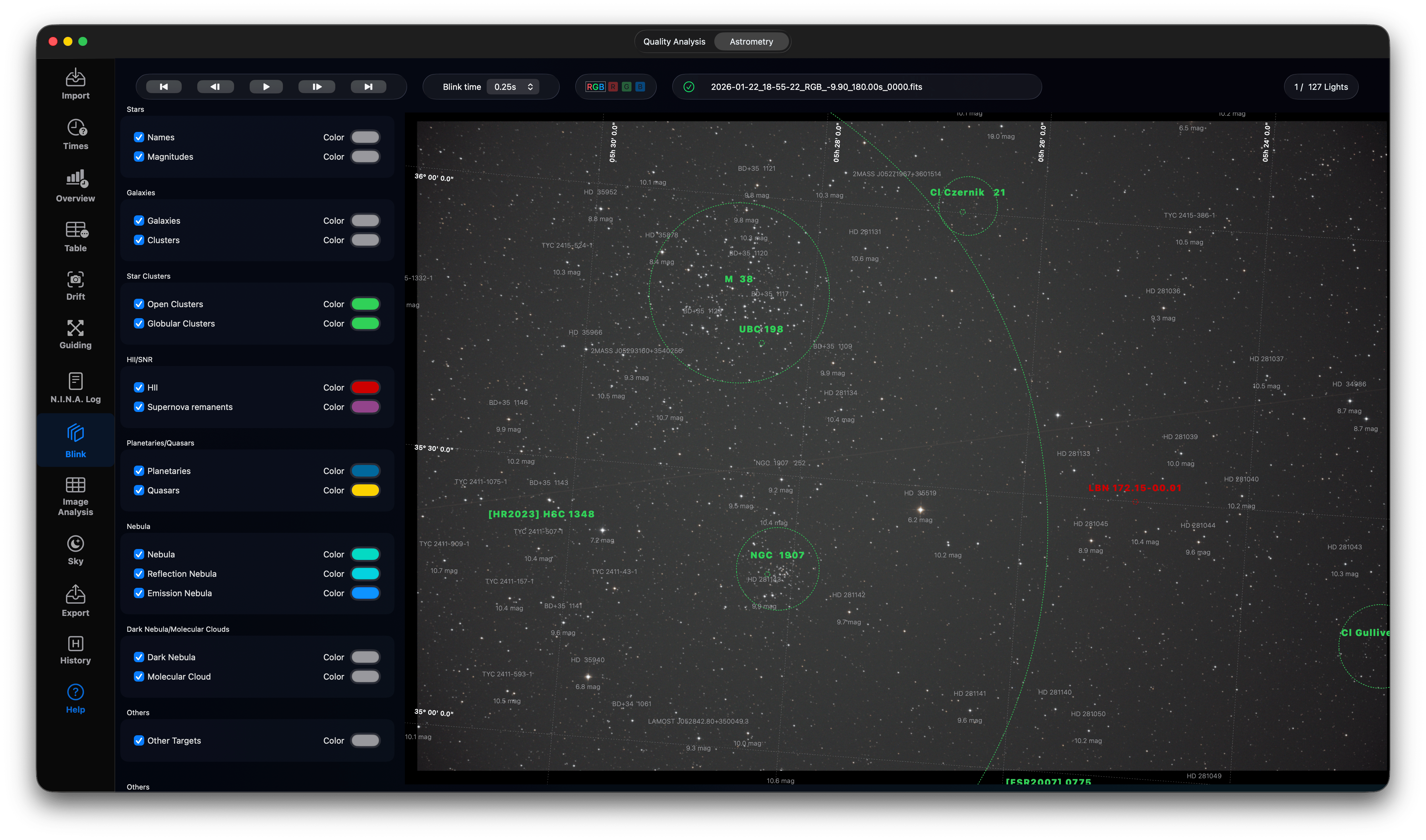
Astrometry & SIMBAD Overlay
If images contain WCS headers, the Astrometry tab activates:
- Displays deep sky coordinate grids on your images.
- Query SIMBAD data: Queries the SIMBAD astronomical database for coordinates.
- Define colors for each type of object - don’t worry, everything is stored so you don’t need to adjust it every time.